
Data Sources
A source is an eCapture WebSocket event endpoint. Desktop connects from its computer. Web connects from the host running ecaptureq-web. The browser only communicates with that Web service.
Keep the three addresses separate
| Address | Where it is configured | Meaning |
|---|---|---|
ws://0.0.0.0:28256/ listener | eCapture --ecaptureq | eCapture opens the event listener on the capture host |
ws://…:28256/ endpoint | eCaptureQ source form or --ecaptureq | The address the running eCaptureQ process can reach |
http://127.0.0.1:28257/ page | Web --addr 127.0.0.1:28257 | The HTTP interface your browser opens |
127.0.0.1 always means this process's own machine. In a Web source form, it means the Web service host, even when you open that form from another computer. 0.0.0.0 is a listener bind address for all IPv4 interfaces; do not enter it as the client's destination. A port selects the service on that host. The example uses different ports to avoid conflicts.
--eventaddr is eCapture's regular event-output destination, not the eCaptureQ typed event interface. It cannot replace --ecaptureq.
LAN, public and same-host connections
LAN example
The Linux capture host is 192.168.1.10. Desktop or the Web service runs on 192.168.1.20. Replace these addresses with the hosts on your trusted LAN.
- On
192.168.1.10, start eCapture with the appropriate capture options and--ecaptureq ws://0.0.0.0:28256/. The full TLS command is in Quick Start. - Allow TCP 28256 from
192.168.1.20in the capture host's firewall. - In eCaptureQ, add
ws://192.168.1.10:28256/. A connected source and an increased connected/total count confirm that the event channel is reachable.
The listener uses 0.0.0.0; the client uses the capture host's actual IP. Adding a connected source does not switch the UI to Live or prove that capture is producing messages.
Public-address example
Suppose the capture host has the public address 203.0.113.10, or a gateway forwards that address's TCP 28256 port to the capture host:
| Setting | Example |
|---|---|
| eCapture listener on the capture host | --ecaptureq ws://0.0.0.0:28256/ |
| Public IP/port that reaches that listener | 203.0.113.10:28256 |
| Corresponding eCaptureQ source address | ws://203.0.113.10:28256/ |
203.0.113.10 is reserved for documentation, not a service to connect to. Replace it with your actual IP or DNS name. A cloud public IP may be mapped to a private interface, so the collector does not necessarily bind the public IP itself. Configure the security group, host firewall and any NAT mapping to allow the egress IP of the machine running eCaptureQ. In Web mode, that is the Web service's egress IP, not the browser computer's.
The table explains address mapping. Native ws has no application authentication or transport encryption. For a public-network deployment, use an existing protected link such as a VPN, or an existing TLS-terminating endpoint such as wss://capture.example.com/, and restrict which sources may connect. In the TLS case, enter that wss endpoint in eCaptureQ; the proxy forwards it to the collector's ws listener. Changing ws to wss alone does not enable TLS, and a TLS endpoint alone does not authenticate users.
Same host and optional SSH access
If both processes run on one Linux host, set the collector listener and eCaptureQ endpoint to ws://127.0.0.1:28256/. No network forwarding is needed.
Optional: connect through an existing SSH login
If the collector must remain bound to its own loopback interface, use SSH instead of a direct connection. Run this on the computer running Desktop or the host running the Web service:
ssh -N -L 127.0.0.1:28256:127.0.0.1:28256 user@linux-hostReplace user@linux-host with your login. Keep the SSH session alive, and enter ws://127.0.0.1:28256/ in eCaptureQ. If local port 28256 is occupied, use 127.0.0.1:29256:127.0.0.1:28256 in the command and enter ws://127.0.0.1:29256/.
Endpoints support ws and wss. They reject embedded username/password, query strings and fragments.
Add and inspect multiple sources
Open the top-right source status button, then Add source. Enter an endpoint and an optional descriptive name. Add each collector separately, up to 16 sources per instance.
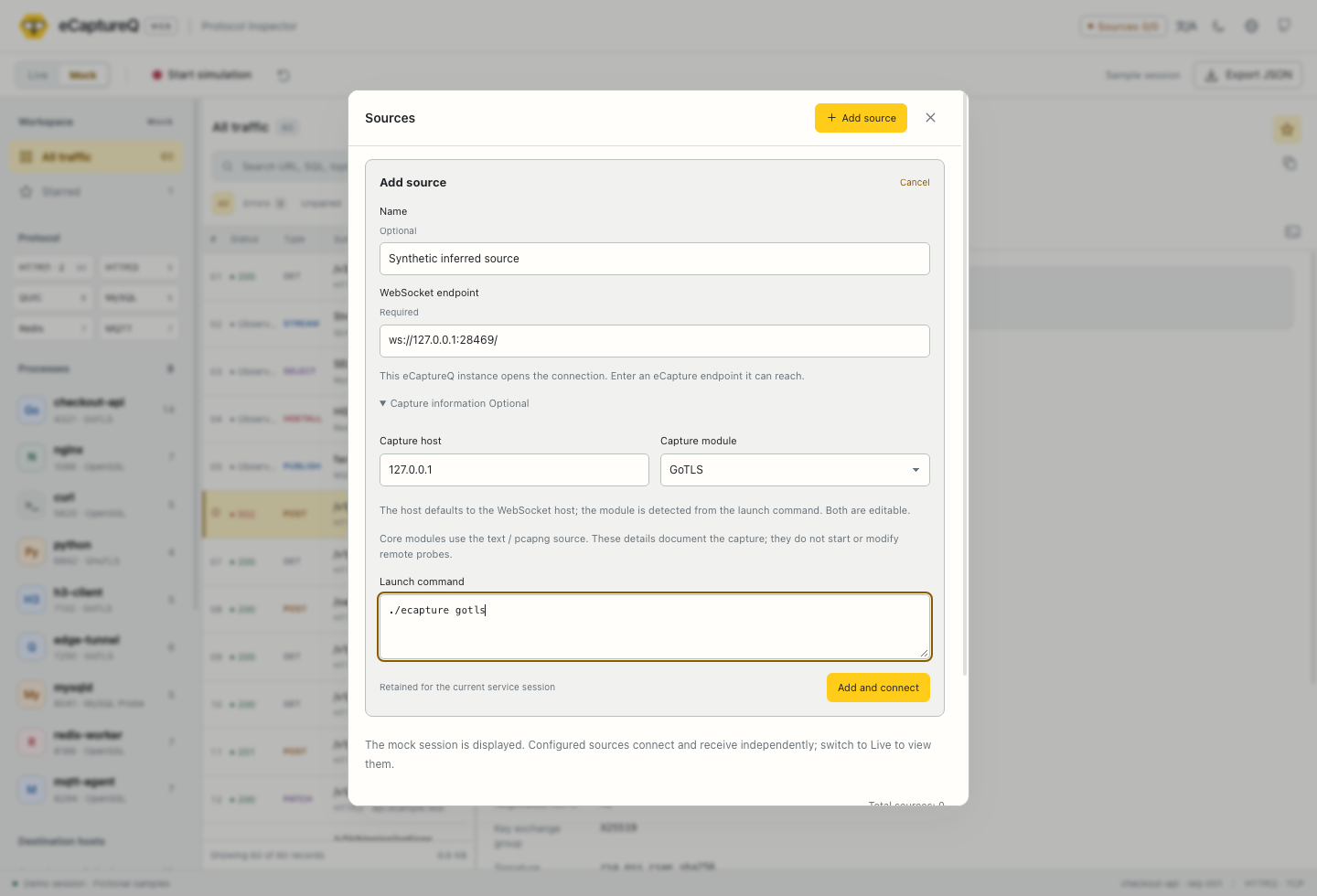
Click to enlarge. Real eCaptureQ v1.0.0 Web UI with synthetic setup data.
The source form initially fills Capture host from the endpoint hostname and recognizes Capture module from a plain ecapture tls, gotls or gnutls command. You can edit these values, especially when the endpoint is an SSH tunnel. The recorded command and module describe your setup; no command is executed, and registration does not prove what was captured.
Each source has its own connection state, retry/reconnect counts and operational logs. The top button reports connected sources / total sources. One disconnection does not stop the others. Reconnection uses automatic backoff; records from different connection generations are not paired with one another. There is no replay of missed events while disconnected. Logs are separate from the message list.
Save connection settings
Without a configuration file, sources added in the UI last only for the running instance. To keep them across restarts, create a writable JSON file, for example sources.local.json:
[
  {
    "endpoint": "ws://192.168.1.10:28256/",
    "label": "LAN capture host"
  }
]
Start the Web program with it (Linux after package installation):
ecaptureq-web --sources ./sources.local.json --mode liveFor macOS/Windows ZIPs, use ./ecaptureq-web or .\ecaptureq-web.exe from the extracted directory with the same options. Desktop also accepts --sources; quit the existing app first, then launch from a terminal:
# macOS
/Applications/eCaptureQ.app/Contents/MacOS/eCaptureQ --sources ./sources.local.json --mode live
# Linux, after package installation
ecaptureq --sources ./sources.local.json --mode live# Windows, from its extracted directory
.\eCaptureQ.exe --sources .\sources.local.json --mode liveYou can instead copy and edit the package's config/sources.example.json (Linux: /usr/share/doc/ecaptureq/config/ or /usr/share/doc/ecaptureq-web/config/). UI additions are written back atomically. If saving fails or the file changed externally, the UI reports an error and does not add the connection. CLI --ecaptureq endpoints remain CLI settings. The JSON file stores source configuration and descriptive metadata, not captured records. The manifest is limited to 128 KiB.
Access a remote Web service
Treat browser-to-Web and Web-to-collector as two separate connections. For a trusted LAN, suppose ecaptureq-web runs on 192.168.1.20 and the browser is on another computer. Start the Web service on 192.168.1.20:
ecaptureq-web --addr 192.168.1.20:28257Allow the browser computer to access TCP 28257 in that host's firewall, then open http://192.168.1.20:28257/. In the source form, the LAN collector is still ws://192.168.1.10:28256/. Opening the page does not prove that this separate event connection works.
For public browser access, use an existing protected HTTPS reverse proxy for the complete Web UI/API prefix. The application's --addr option only controls its HTTP listener; it does not provide HTTPS or user authentication. Subpath deployments can use --base-path; see the official deployment reference. The source form does not install or reconfigure a proxy.
Optional: open a loopback-only Web service through SSH
If the service remains bound to 127.0.0.1:28257, run this on the browser computer:
ssh -N -L 127.0.0.1:28257:127.0.0.1:28257 user@web-hostThen open http://127.0.0.1:28257/ locally. This tunnel opens the Web page only; any separate collector tunnel belongs on the Web service host.
Sessions and retention
Each running Desktop or Web instance has its own live session and bounded cache. Browser tabs attached to one Web service see that service's live cache, while their display filters and stars are page-local. Independently launched instances do not share records. Restarting the service/application discards live records and logs; saved sources can reconnect, but they cannot restore old messages. See FAQ.